
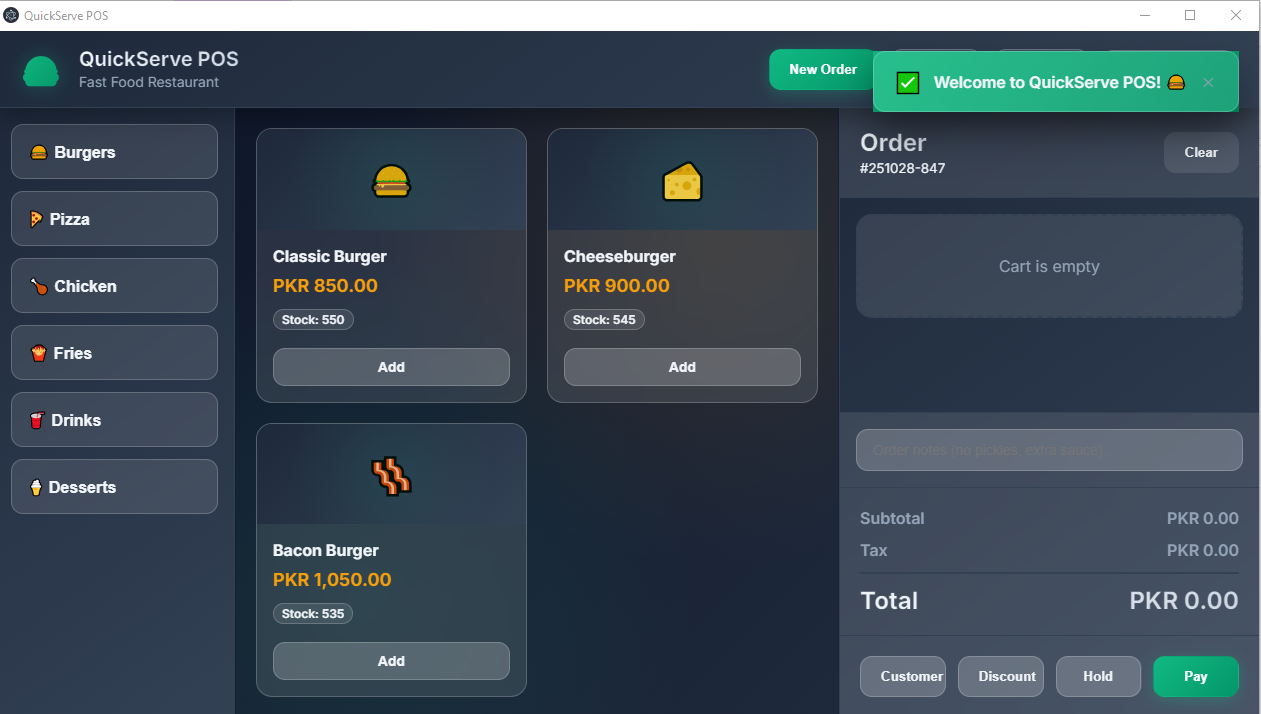
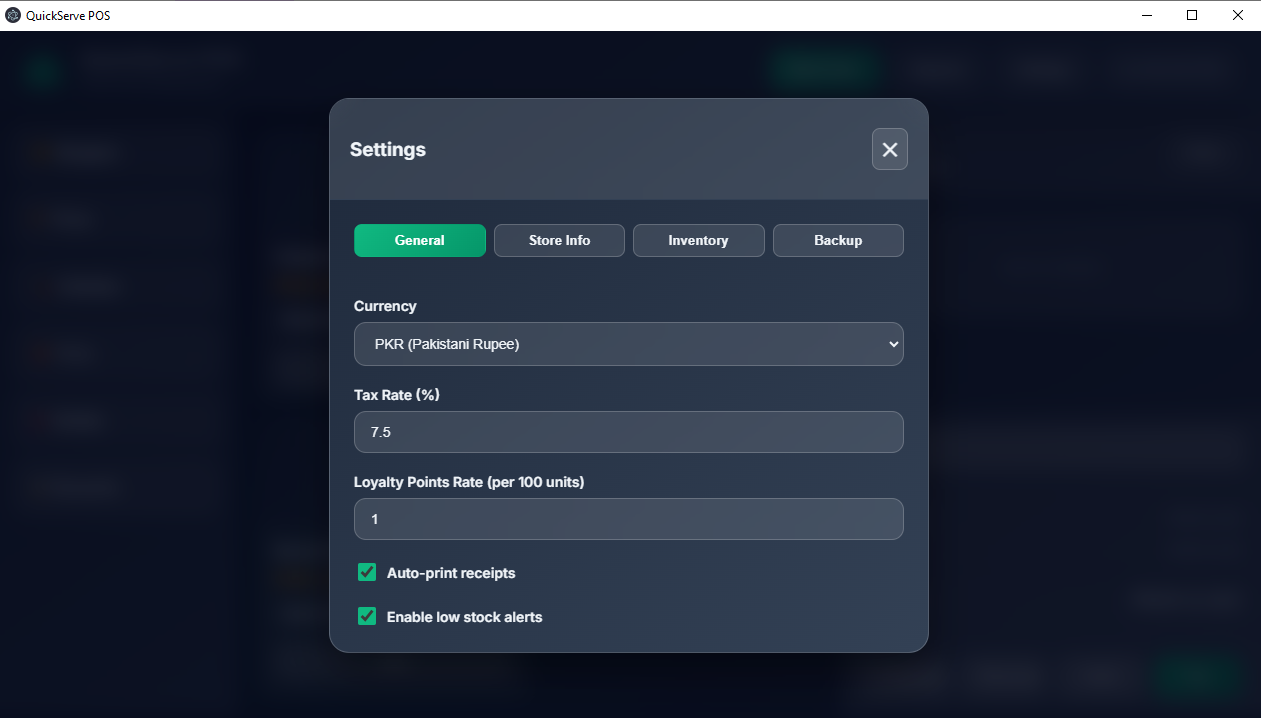
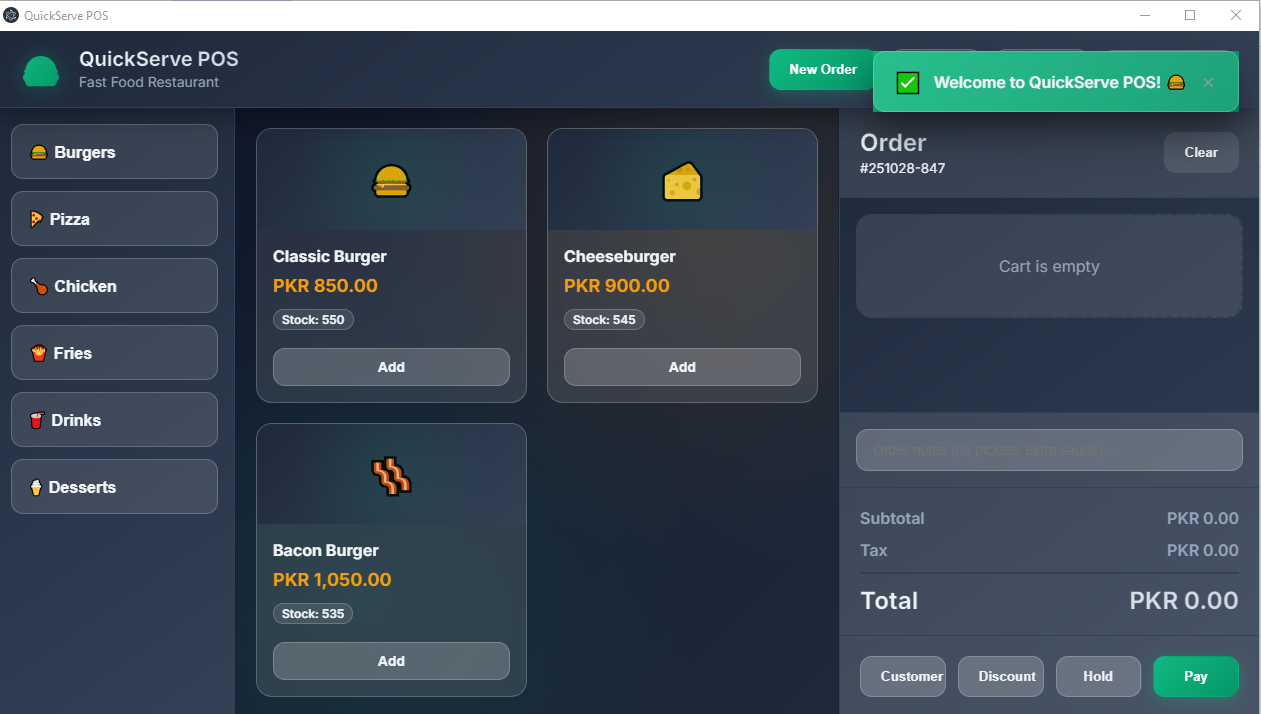
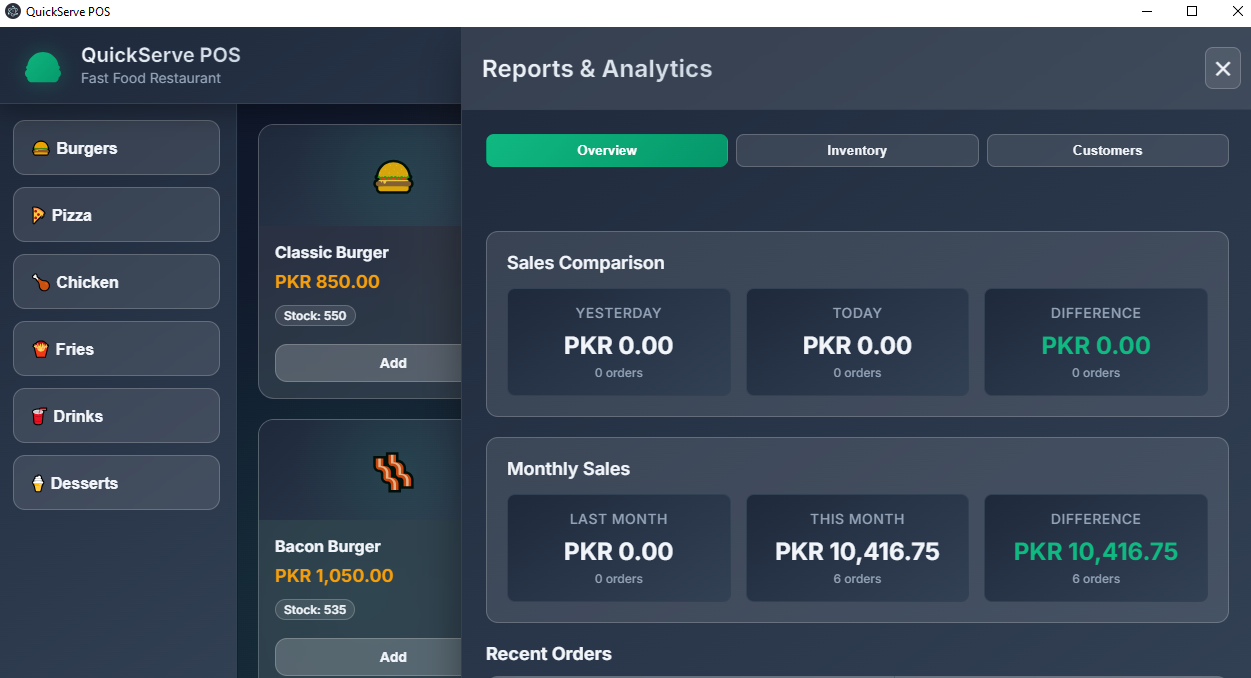
Description
How to Access and Install Your Fast Food POS System
You have purchased and downloaded a digital POS system. The downloaded file is a large package that contains everything needed to run the application on a Windows computer. Here is a simple step-by-step guide:
Step 1: Download the Product
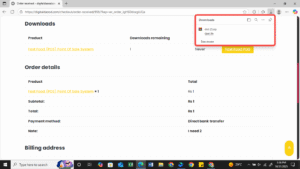
After your purchase, you will receive a download link. The image shows you had 1 download remaining for the “Fast Food (POS) Point Of Sale System.”
Step 2: Locate the Downloaded Zip File
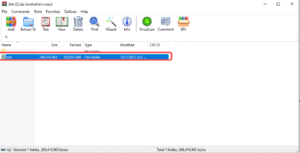
The main file you downloaded is called List.zip. This is a compressed folder (like a suitcase for files) that contains the POS software. You will need a program like WinRAR or 7-Zip to open it.
Step 3: Open the Zip File
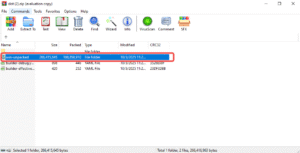
When you open List.zip, you will see another zip file inside named dist.zip. You need to open this one as well. Inside, you will find a folder named win-unpacked.
Step 4: Find the Application
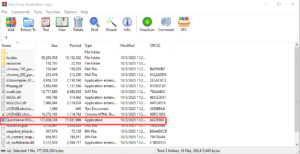
Open the win-unpacked folder. Here you will see all the necessary files for the software. The most important file is the application itself, which is highlighted in your image. Look for the file named:
QuickServe POS.exe
This is the main program file. You do not need to run any other setup file.
How to Start Using the POS System:
-
Extract the Files: First, you must extract (or unzip) all the files from the
List.zipanddist.ziparchives to a folder on your computer. -
Find the EXE: Navigate to the
win-unpackedfolder. -
Double-Click to Run: Simply double-click the
QuickServe POS.exefile to launch and start using your new Fast Food POS system.
Reviews
There are no reviews yet.